Actionables
Create Actionable Item
Click  to begin a new actionable.
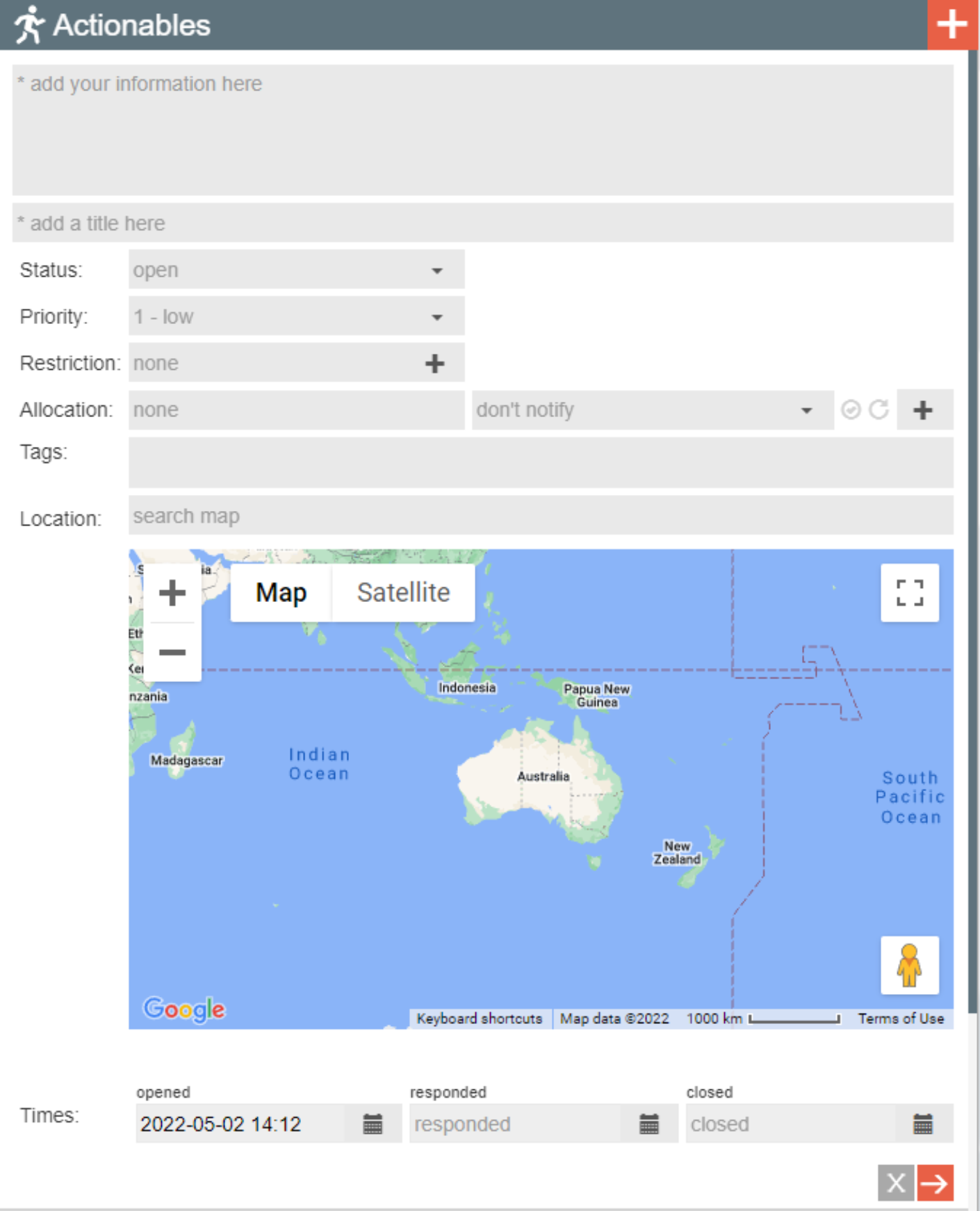
Enter your key information into the text field and enter a title for the actionable.
Each actionable can also have the following properties set (not all properties may be available):
- Status: open or responding (status becomes closed when the actiobale is closed)
- Priority: select from the priority list
- Restriction: by default, your update will be seen by all users logged into the operation. To restrict the update to specific users, type a user or user group name into the restriction box. Add mutiple users or user groups to the restriction by clicking
 .
. - Allocation: type the names of Indigo users to whom this Actionable will be allocated and select notification options. Add multiple users to the allocation by clicking .
- Tags: type the name of any preset log to tag the Actionable for that topic. This is a reporting tool that allows export of information (logs and actionables) by topic.
- Location: enter an address or landmark in the location field and select an option. Further refine this if necessary by clicking on the map to drop a location pin.
- Times: by default, each actionable commences at the time you begin it. Use the time control to change this if necessary.
Click  to submit.
Actionable Status Updates
Each Actionble has a status bar showing time elapsed, status, priority, restriction and allocation. Click  to open (and update) the actionable properties.
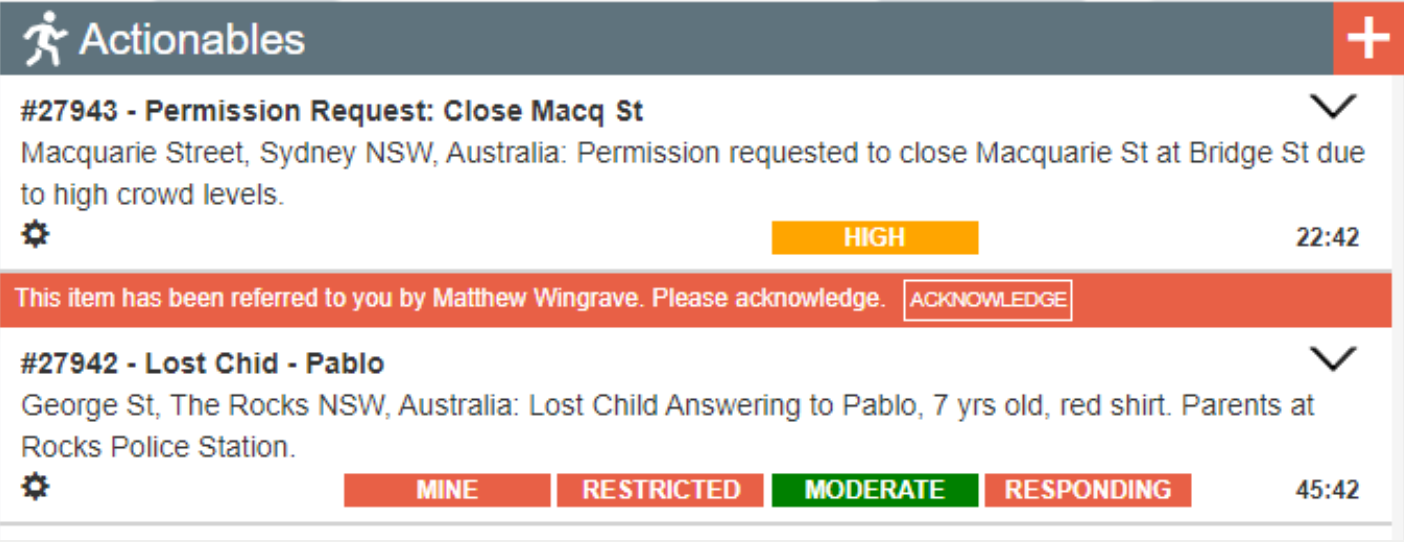
When allocation notification is set, an alert apprears for relevant users above the item requesting acknowledgement or response.
Actionable Tips: Keep an eye on the timer for each actionable. The goal is to close actionables as quickly as possible. Every Indigo user should read all actionables for situational awareness.
Actionable Audit Trail
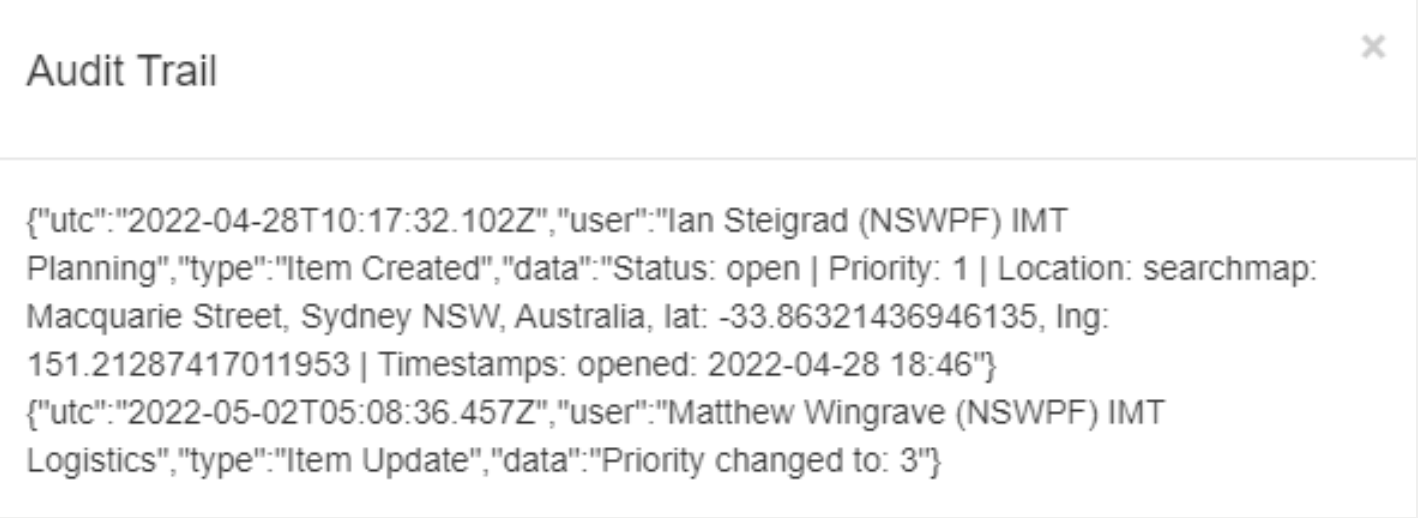
At the bottom of the actionable properties, click  to display the audit trail for the actionable. Every change to actionable properties is recorded in the audit trail.