The Log
View Item
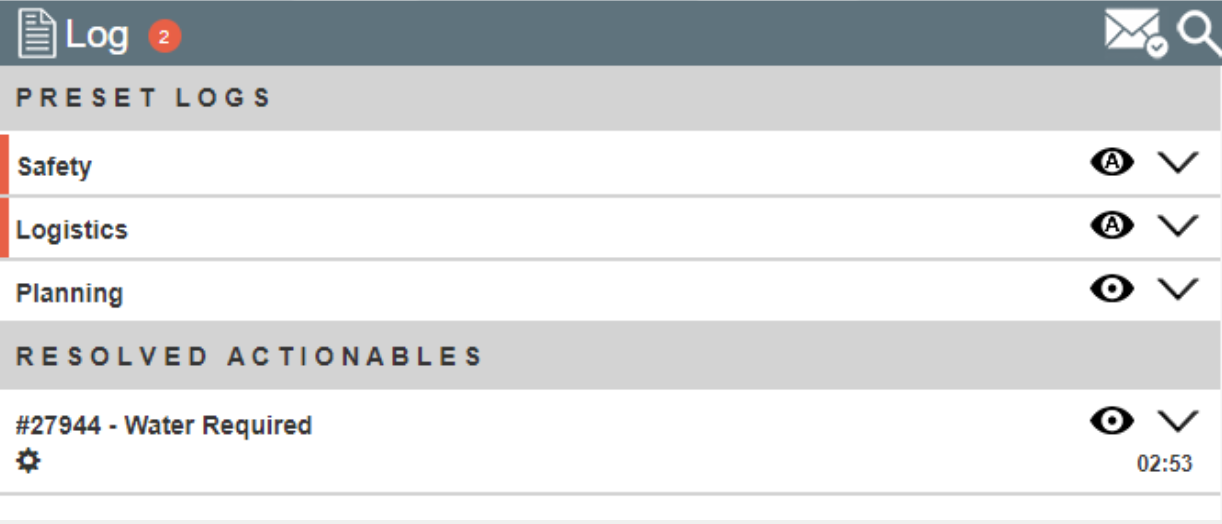
Each log row represents a separate entry. The latest updates are shown, with options to expand for more.
Clicking  expands the item so that the full text can be viewed (see below). A red bar to the left of the item denotes that the item is unread.
Once expanded, the two most recent updates associated with that log can be viewed.
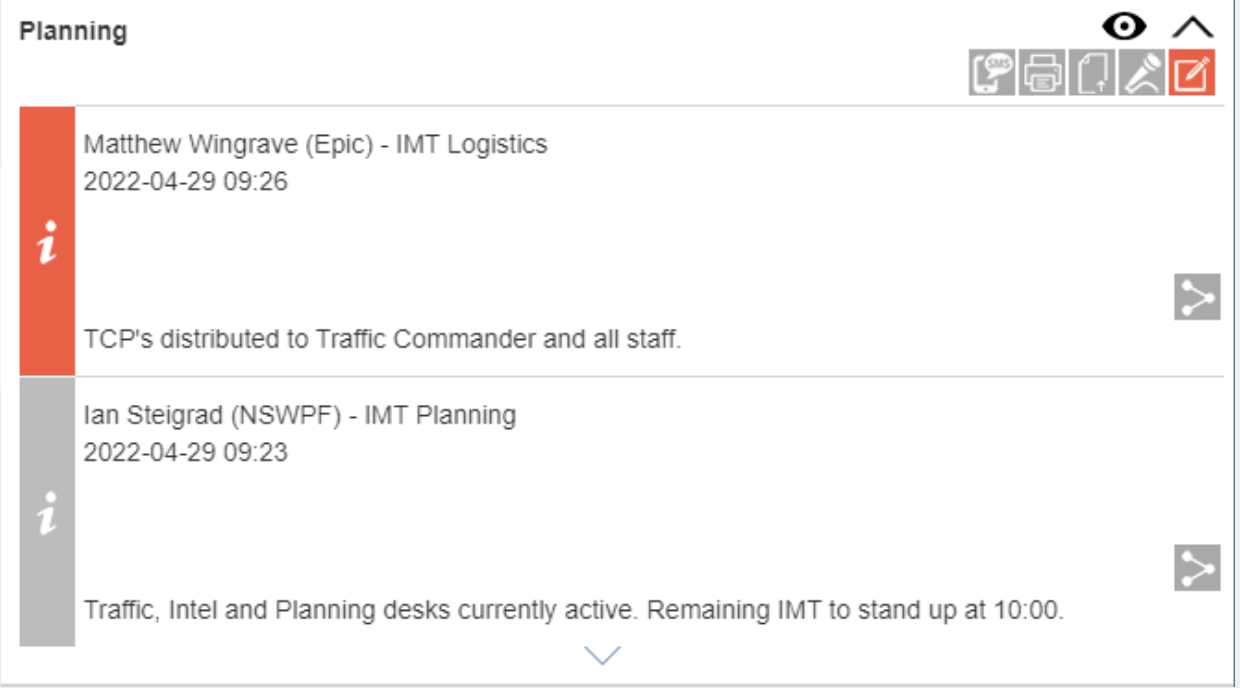
Click  to reveal more updates. The most recent update is at the top
Update Item
To add an update to the item click 
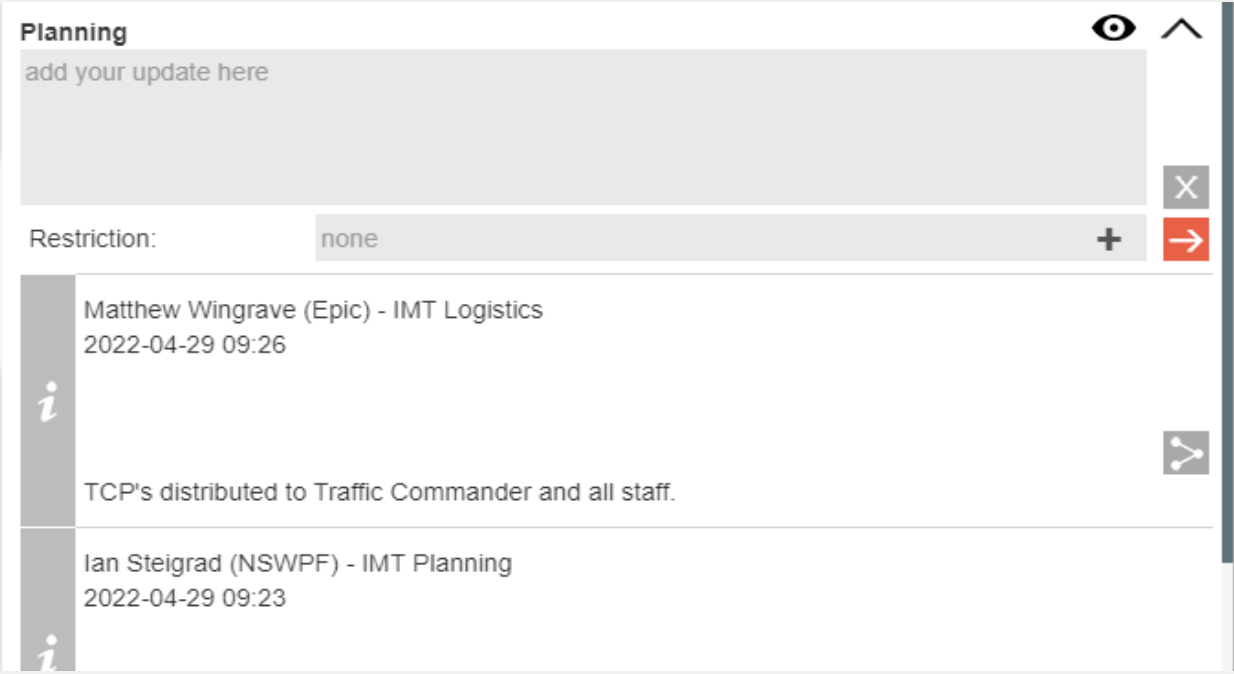
Enter your information into the update field. By default, your update will be seen by all users logged into the operation. To restrict the update to specific users, type a user or user group name into the restriction box.
Add mutiple users or user groups to the restriction by clicking  .
For log updates restriction cannot be changed once submitted.
.
For log updates restriction cannot be changed once submitted.
Click  to submit
Item Visibility
Each Log Item’s visibility can be changed depending on its relevance to you.
 Pinned: Always visible.
 Hidden: Never visible.
 Auto: Hidden unless unread.
Searching Logs
To find old or invisible items, use the search tool by clicking on  to enable search mode.
In search mode, all logs are displayed (regardless of visibility) and visibility can be changed.
Enter text to search for sepecific information and press Enter. A red border appears to indicate that you are viewing search results.
Click to turn off search mode when you’re finished using it.
Log Tips: Click  on each log to close it when you’ve finished reading.